Here’s a question that keeps SAP Basis admins up at night: what happens when your SSL/TLS SAP certificates expire and nobody notices? If you’ve been managing SAP Java systems for any length of time, you know the answer — broken trust, failed SSO, and a very urgent call from security. The problem is getting worse. Certificate lifetimes are shrinking fast: from 398 days today down to 47 days by 2029. Manual renewal simply won’t scale.
The good news? SAP gives you a built-in way to automate the entire certificate lifecycle for AS Java systems. No third-party tools, no custom scripts — just the Certificate Lifecycle Management (CLM) application that comes with Secure Login Library 3.0. Let me walk you through the full setup.
Table of Contents
Why SAP Certificate Automation Matters Now More Than Ever
Let’s talk numbers. In 2026, certificate validity dropped to 200 days. By 2027 it’s 100 days. And by 2029, we’re looking at 47-day certificates. If you’re still renewing manually, you’re about to have a very bad year.
On the ABAP side, you can schedule SSF_CERT_RENEW as a background job and call it a day. But AS Java doesn’t have that luxury — or at least, it didn’t until SAP delivered the CLM application as part of Secure Login Library 3.0. This is the Java equivalent of automated certificate renewal, and it’s surprisingly straightforward to set up.
If you’re already familiar with SAP IAS and IAG integration, you know how critical certificate management is for identity providers. One expired certificate and your entire SSO chain breaks.
Step 1: Deploy Secure Login Library 3.0
Everything starts with the Secure Login Library (SLS) 3.0. This is the foundation — without it, there’s no CLM application to work with.
Here’s what you need to do:
- Download the Secure Login Library 3.0 package from the SAP Support Portal. Look for the OS-independent SCA file — it’s the one that works across all platforms.
- Deploy the SCA file to your AS Java system using the telnet deployment tool. If you’ve deployed SCAs before, this is the same process. If not, connect to your Java instance via telnet on port 5<instance>00 and use the
deploycommand. - Once deployed, the system automatically makes the CLM application available at
https://<your-host>:<port>/sapsso/clm.
That’s it for the deployment. The CLM application is now live and waiting for configuration.
Step 2: Grant CLM Access to Your Keystore
The CLM application needs permission to read and update certificates in your keystore. Without this, it can see the certificates but can’t renew them — which defeats the whole purpose.
Head to the NWA (NetWeaver Administrator) and navigate:
Configuration → Certificates and Keys → Key Storage → Security → Permissions by Domain
Search for the CLM application and grant it full access to the keystore views you want to renew automatically. Typically this includes:
- ssl_standard — Your standard SSL server certificate
- sso — SSO-related certificates
- Any custom keystore views you’ve created for specific applications
Be thorough here. If you miss a keystore view, those certificates won’t get renewed automatically and you’ll be back to manual management for those.
Step 3: Register Your System (Initial Enrollment)
Now open the CLM application in your browser. The first time you access it, you need to register your system — think of this as the initial handshake between your Java system and the certificate authority.
Here’s the process:
- Enter your metadata URL — this is the enrollment URL from your certificate authority. Click Fetch to pull the CA metadata.
- Log in with a user that has CLM enrollment permissions. This needs to be a user with sufficient privileges in the Java system.
- Click Register, review the issued client certificate, and click Save.
After registration, the CLM application knows who you are and which CA to talk to. The metadata URL is stored, so you won’t need to enter it again for renewals.
Step 4: Renew Certificates
With registration done, certificate renewal is almost trivial. Go to the Enrollment tile in the CLM application:
- The metadata URL is already populated from registration.
- Select the keystore view containing the certificate you want to renew.
- Select the specific certificate from that keystore.
- Click Enroll Certificates. The updated certificates appear immediately.
- Use Show Details to verify the new certificate — check the validity dates, issuer, and subject.
One thing I appreciate about this tool: it shows you the new certificate before you commit. No surprises, no “oops, wrong CA” moments.
Step 5: Schedule Automatic Renewals
This is where the real value kicks in. Instead of manually running the enrollment every few months, create a scheduled task inside the CLM application:
- In the CLM application, navigate to the scheduling section.
- Configure the task to run at regular intervals — daily or weekly works well.
- The task executes under the currently logged-in user, so make sure that user has the necessary permissions.
- Set a grace period — the number of days before expiry when renewal should trigger. With 47-day certificates on the horizon, a grace period of 7-10 days gives you plenty of buffer.
Once scheduled, the CLM application handles everything: checking certificate validity, requesting renewals from the CA, and updating the keystore. You just monitor the logs occasionally to make sure everything’s running smoothly.
What About ABAP Systems?
If you’re running a dual-stack or ABAP-only landscape, the approach is different. ABAP uses report SSF_CERT_RENEW which you schedule as a background job. The SAP Community guide by Tobias Lejczyk covers the ABAP side in detail.
For non-ABAP, non-Java systems like HANA DB or Web Dispatcher, you’ll use the sapslscli command-line tool that comes with SLS 3.0. It’s a different workflow but the same underlying library.
The Bigger Picture: SAP’s Certificate Strategy
There’s an important caveat here. SAP Secure Login Server 3.0 goes into maintenance mode in 2027. SAP’s successor is the Certificate Exchange Service (CES) running on BTP, currently planned for Q4/2026. For cloud-first customers, CES is the future.
But for on-prem Java systems — and there are thousands of them — the CLM application remains the practical solution today. It’s built-in, it’s free, and it works. When CES matures and supports on-prem scenarios, you can migrate. Until then, CLM gets the job done.
Conclusion
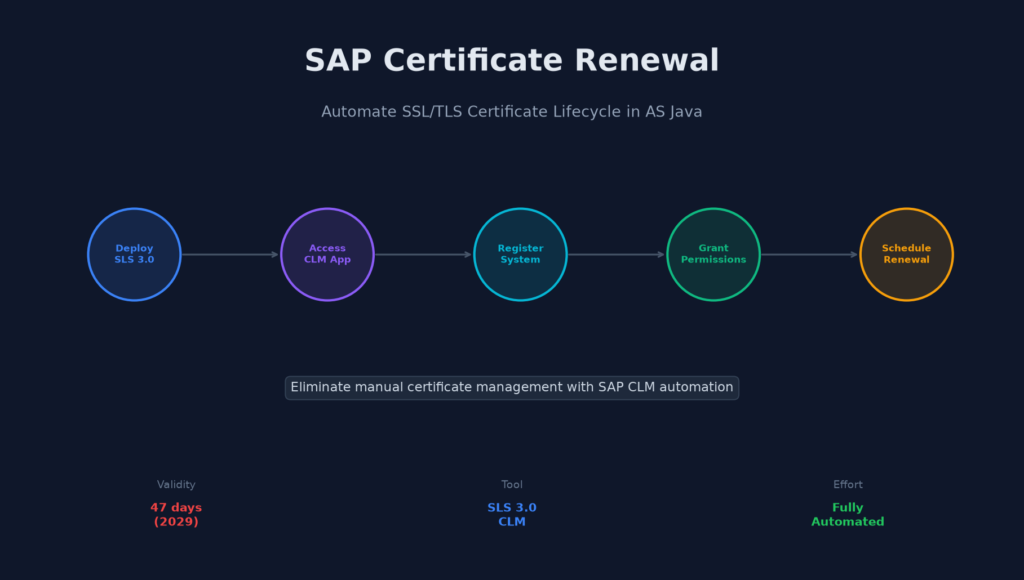
Five steps. That’s all it takes to go from manual certificate panic to fully automated renewal in AS Java:
- Deploy Secure Login Library 3.0
- Grant CLM keystore permissions
- Register your system with the CA
- Renew certificates through the CLM app
- Schedule automatic renewals
With certificate lifetimes shrinking to 47 days, automation isn’t optional anymore — it’s survival. The CLM application won’t win any design awards, but it does exactly what it promises: keeps your certificates valid without you lifting a finger.
Have you set up CLM automation in your Java landscape? Run into any gotchas? Share your experience in the comments — I’m always curious how these setups work in the real world.